

Class Guide · 上课指南
After payment, here's how to start learning
Follow these steps from your first lesson all the way to your certificate.
- 1
Payment done → start learning
- After paying you'll see “Payment successful!” — tap “Start learning →” to open your course.
- Any time later: log in, tap “My Courses” at the top right (phone: “My Learning” at the bottom), then “Start learning →” or “Continue learning →” on the course card.
📍 Where: “My Courses” top right / phone: “My Learning” tab
- 2
Watch the lessons in order
- Computer: the lesson list is on the left — tap any lesson to watch it.
- Phone: tap the “Modules” button to open the lesson list.
- Finished a lesson? Tap “Next →” to continue, or “← Previous” to go back.
📍 Where: Lesson list on the left / “Modules” button on phone
- 3
Mark every lesson complete
- A lesson is marked complete automatically when the video ends, or tap “Mark as complete” under the video.
- The progress bar at the top shows how many lessons you've finished.
- ⚠️ You must complete ALL lessons before the final exam unlocks.
📍 Where: “Mark as complete” button under the video
- 4
Notes and exercise files are under the video
- Scroll down on any lesson to find the “📒 Lesson notes”.
- The “Exercise files” section has the Excel practice files — download them and practise along with the video.
📍 Where: Below the video on every lesson
- 5
All done? Take the final exam
- Once every lesson is complete, “Final exam” unlocks at the bottom of the lesson list, and a “Take the final exam” button appears.
- Before you start, double-check the name, email and company for your certificate, and tick the red confirmation box.
- Your answers save automatically, even if you close the page — and you can retry as many times as you need.
📍 Where: “Final exam” at the bottom of the lesson list
- 6
Download your certificate
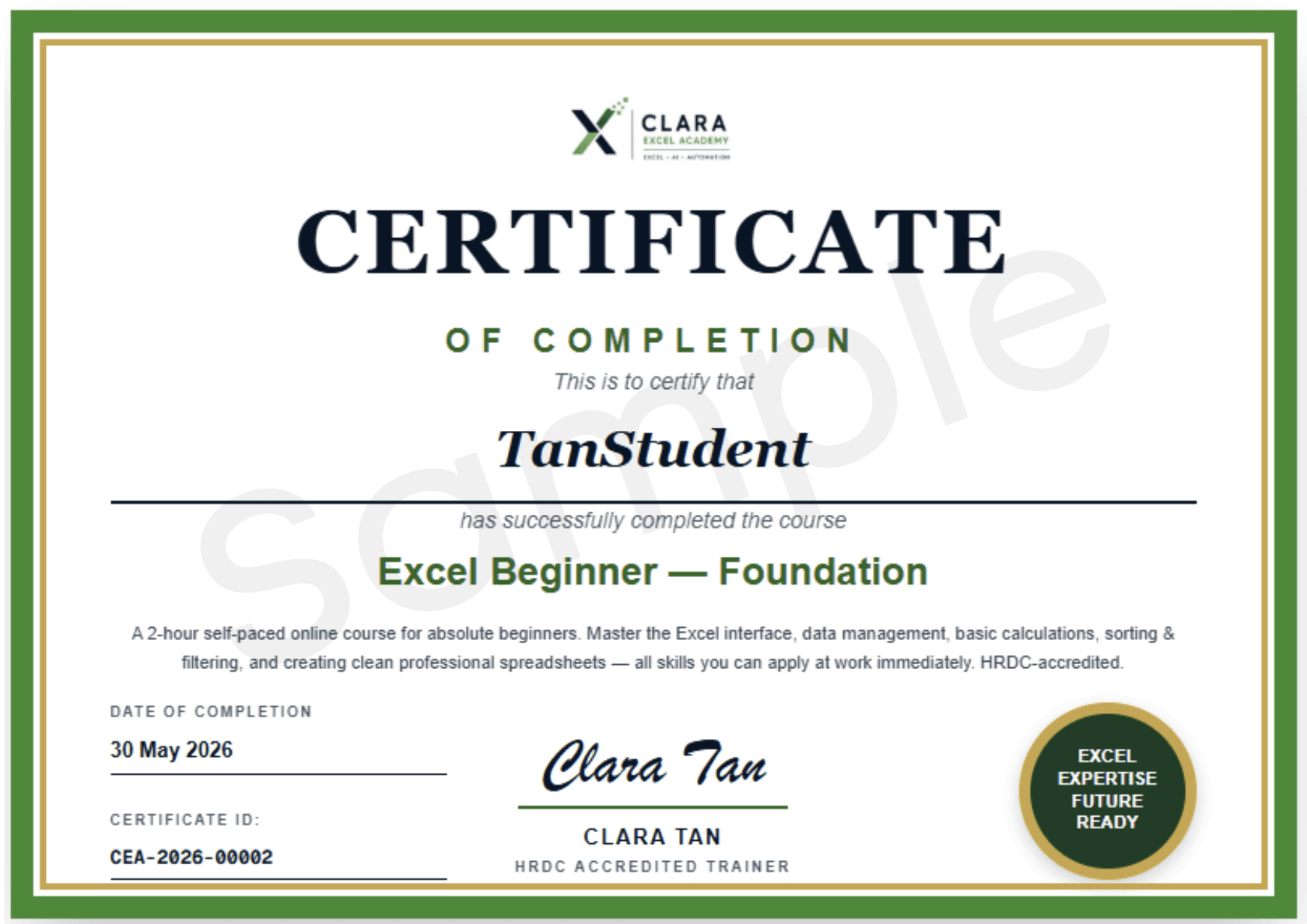
- Pass the exam and your certificate appears — choose the English or 中文 version.
- Tap “Print / Save as PDF”, then pick “Save as PDF” in the print window.
- Please download it within 30 days. You can also find it under “Certificates” in the menu.
📍 Where: Exam result page / “Certificates” menu
- 7
Profile: name, password, invoices
- Tap “Profile” in the menu.
- “Account details”: update your name (use your full name as per IC — it goes on your certificate), WhatsApp number and WhatsApp username, then tap “Save profile”.
- “Change password”: enter your current password and a new one.
- “Invoices”: every payment has a “Download invoice” button — save it as a PDF.
Also, remember to add your WhatsApp username — the admin uses it to accept your request to join our WhatsApp group.
📍 Where: “Profile” in the menu

Questions? Ask in the WhatsApp group
- On any lesson, tap “Stuck? Ask on WhatsApp” at the bottom right, then “Ask in the course group” — Clara and your classmates will help.
- Prefer to ask privately? Choose “Message Clara directly”, or use the button below.
Before asking to join the WhatsApp group, add your WhatsApp username under “Profile” — the admin uses it to accept your request.
WhatsApp Clara